This guide covers the free 0.1.0-beta.7 beta. See release status
Try the whole workflow
Write → read → revise → review → publish.
MD Duck reads the files on your computer. Write and revise with your own AI, use MD Duck to read and check, then publish through your own tools. No MD Duck account or AI key in the reader is needed.
Includes the before-and-after sample article, revision instructions and a publishing handoff. Unzip first. Try these demo files before using your own drafts.
Example folder structure
Unzip the example, then open its library folder in MD Duck.
Step 1 of 5
Keep writing with your own AI.
Ask it to save Markdown into a local folder. If it cannot access files, save its answer yourself. Open your article library in MD Duck and choose an article. For this downloaded example, select the library folder inside the extracted files.
Mac: unzip in Finder, then use File → Open Folder (⌘ O) to select library.
Windows: use Extract All, then File → Open Folder (Ctrl O) to select library.
Step 2 of 5
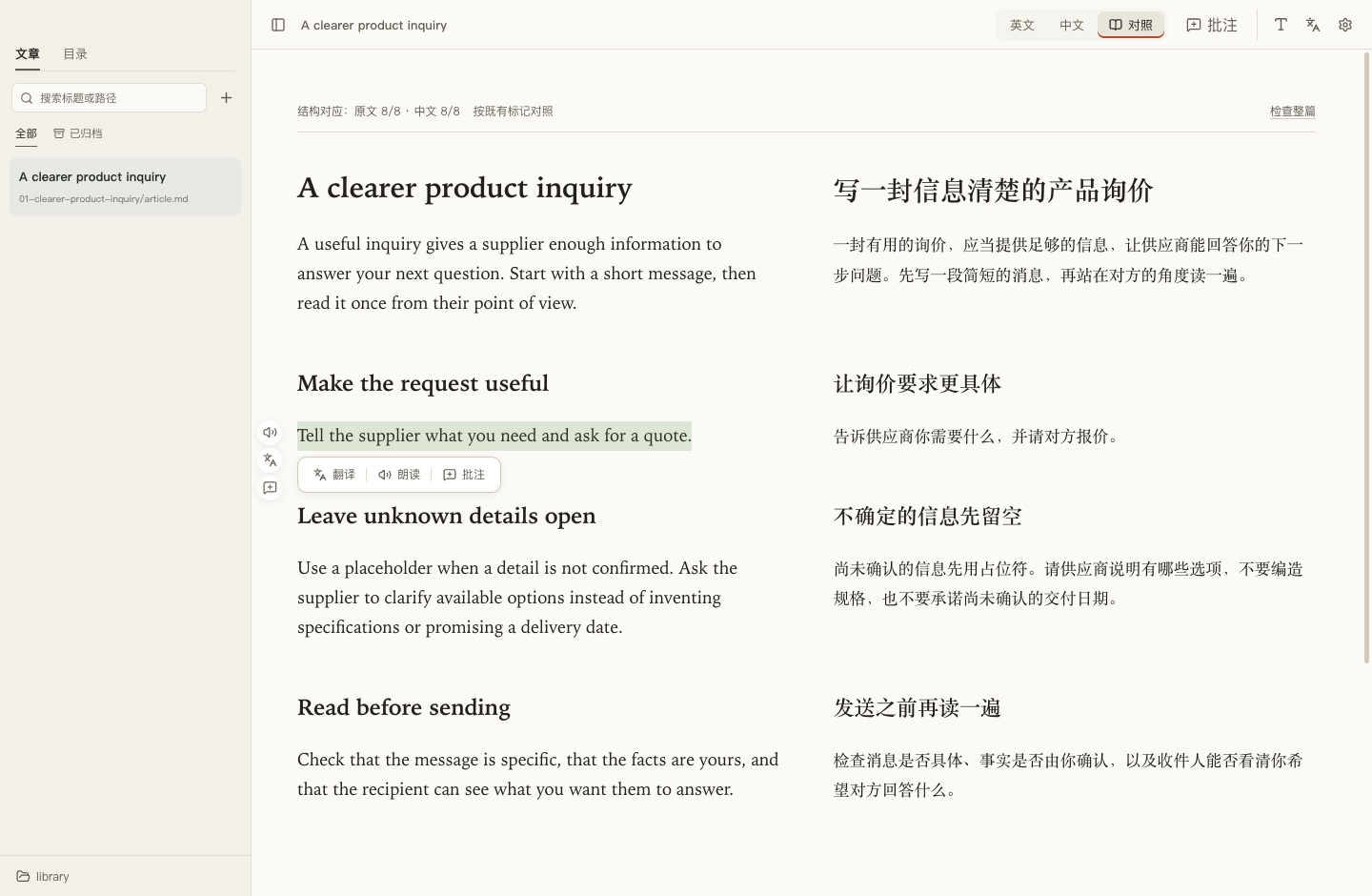
Notice what the article leaves unclear.
Read at a comfortable size, with a translation if you have one. Our sample says “Tell the supplier what you need” without explaining which details to include. Select the passage or capture a screenshot.
Mac: select and copy with ⌘ C, or capture with Shift ⌘ 4.
Windows: select and copy with Ctrl C, or capture with Win Shift S.
Revision instruction example
“Explain which product, size, quantity, delivery city and date to include. Use placeholders for unknown facts. Update both language files.”
Include the filename and original text or screenshot.
Step 3 of 5
Take that passage to your AI conversation.
Paste the text or attach the screenshot. Include the article filename and a concrete request: add the product, size, quantity, delivery city and required date, using placeholders for unknown facts. Ask it to update both languages and preserve the block IDs.
Mac: paste with ⌘ V, or attach the screenshot to your AI conversation.
Windows: paste with Ctrl V. Paste the screenshot too if the AI chat accepts images.
Step 4 of 5
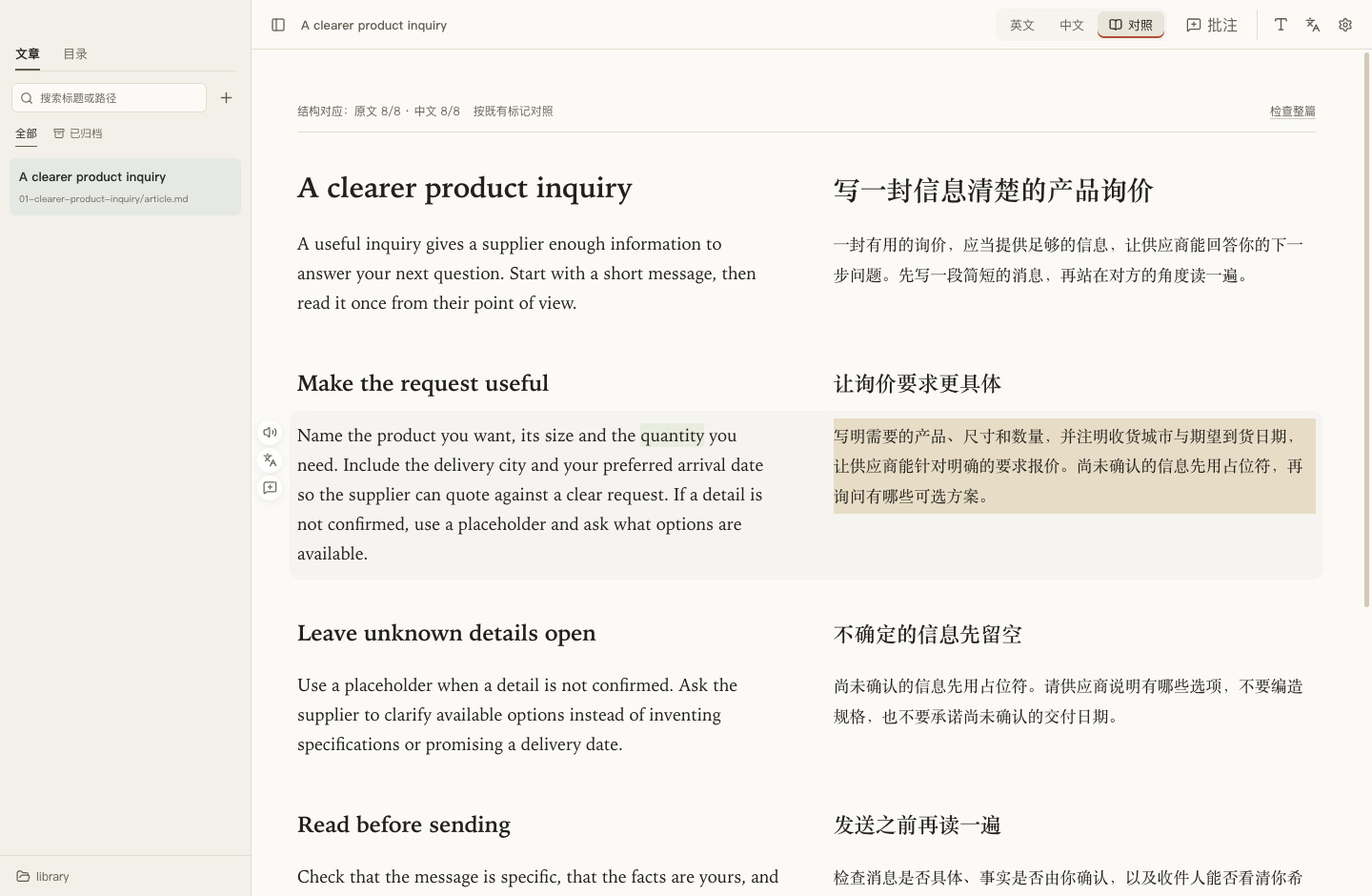
Save the files, then read them again.
Your AI can update files if it has access; otherwise save its revised text yourself. Keep the files in the same location. MD Duck refreshes after saving. Check the revised paragraph, translation and images. Repeat if anything still needs work.
Mac: save in your editor with ⌘ S, then return to MD Duck.
Windows: save with Ctrl S, then return to MD Duck.
Publishing handoff example · no backend connected
“Use this approved article. Show me the target and final content. After I confirm, publish and return the live URL. Keep my local files.”
Your external AI needs backend permissions. MD Duck does not operate your CMS.
Step 5 of 5
Hand off only the version you approve.
When you are happy, ask an external AI with backend access to prepare publication, or publish it yourself. Confirm the destination and final content. Keep the local article folder as your source, even after it goes live. MD Duck itself does not publish.
Mac: reveal the article in Finder from its ⋯ menu. Back up the complete folder.
Windows: reveal the article in File Explorer from its ⋯ menu. Back up the complete folder.
For several comments at once, annotations and Copy open are still available. For one passage, a screenshot or copied text is enough.
Watch the 90-second walkthroughFour file rules to remember.
- Number the folders for a series. Use 01-introduction, 02-materials… so the intended sequence is visible in both MD Duck and your file manager. Titles inside the articles can stay natural.
- Pair names in the same folder.
article.md+article.zh.md. A translation is optional; other matching names such as notes.md / notes.zh.md also work. - Keep images local and markers stable. Use assets/image.svg (forward slashes on either system). Give corresponding blocks the same unique marker, such as
<!-- block:intro -->. Preserve existing IDs when revising. - Move and back up complete folders. Include hidden .review and .mdduck data. Prefer the app’s Move or Archive actions; never ask an AI to rewrite these metadata folders. Unsaved comment drafts and app settings stay on the current computer.
A few drafts can share one folder; use an individual article folder when it has images or a translation. For comfortable reading, adjust the font size and open only the side panel you need. Switch to a single language in a narrow window.
Let your AI follow the same workflow.
Choose a prompt, copy it and fill in your topic and requirements. An AI with file access can save the files directly; a chat-only AI should return each filename and its complete Markdown content for you to save.
Create an article or seriesFolder names, bilingual structure, local images and a final checklist.
Revise a screenshot or passageAttach the passage, give its filename, and say what needs changing.
Hand off an approved article for publicationConfirm the destination and final version; keep the local source and request the live URL.
Optional: revise a batch of annotationsPaste copied comments when several passages need revising together.
These prompts work with your own AI workflow. They do not connect an account, grant file permissions or send any article from this page.
Install on Mac
MD Duck is free to use. The Mac package targets Apple Silicon (M-series chips) and requires macOS 13 or later. It has been checked on one Mac running macOS 27. See Downloads for files, versions and checksums. An Intel Mac installer is not provided.
Open the DMG and drag MD Duck into Applications. Eject the disk image after copying, then launch the installed app. Before updating a beta, back up your whole article library, including hidden .review/ and .mdduck/ folders.
Does macOS block the first launch?
This beta has no Apple Developer ID signature or notarization. If you are certain the file came from this project’s release links and has not been altered, follow Apple’s official instructions to allow this app:
- Try opening MD Duck, then open System Settings → Privacy & Security.
- Find the notice for MD Duck and click Open Anyway.
- Click Open when asked again, and authenticate if prompted.
If Open Anyway is unavailable, or the alert says the app is damaged or will damage your computer, stop the installation. Download it again, compare its checksum with the release, and report the exact alert. A Mac managed by an organization may require its administrator’s help.
Install on Windows
Choose the Windows x64 installer for Windows 10 or later on a 64-bit Intel / AMD computer. Run the downloaded EXE, choose an installation folder and open MD Duck from the Start menu. The installer runs per user and normally does not require administrator privileges. There is no Windows ARM installer yet.
The beta has no Windows publisher signature, so Windows may show a source warning. Confirm the file came from this project’s Downloads page and compare its SHA-256. You do not need to disable system protection. In PowerShell, use Get-FileHash -Algorithm SHA256 "full file path"; on Mac, use shasum -a 256 "full file path".
Local speech also requires the Microsoft Visual C++ v14 x64 runtime. If it is missing or speech cannot start, install the x64 runtime using Microsoft’s official instructions. You do not need to buy Visual Studio. The runtime installer may need administrator privileges; reading and annotations do not require it.
Windows builds passed automated tests, installation, startup restoration, change review in the installed app and offline synthesis with all five voices. Hands-on desktop use and speaker playback have not been validated. Back up your whole article library, including hidden .review/ and .mdduck/ folders, before updating. Install the new version into the same location; articles stay in the folders you choose.
Open your first article
Choose Open folder or Open a file in MD Duck, or drop a Markdown file into the window. After opening a folder, choose an article from the directory tree on the left. A source file and its associated Chinese translation open as one article.
For a first look, choose Open example. You can also download the bilingual sample article, unzip it, and open article.md.
Keep using your preferred AI or editor to change the text. MD Duck refreshes the reading view when you save. Use Typography to adjust text size, and Settings to change the interface language.
Let AI write. Read it yourself. Improve the passage.
MD Duck presents your local article for reading. Write and revise with your usual AI or editor, and publish with your own CMS tools.
- Save the first draft locally. Give your AI the file rules and writing prompt, with a specific library folder. If it cannot access your computer, ask for filenames and complete Markdown, then save the files yourself.
- Open the article and read. Check reasoning, wording, images and any Chinese companion in MD Duck. You do not need to create comments first.
- Send the issue straight back. Copy the passage or capture a screenshot and paste it into your AI chat. Include the article location and a concrete request: “This only says to use enough water and wait a moment. Give quantities and a way to judge the result; leave the rest unchanged.” A screenshot still needs the latest source, either through the AI’s file access or text you provide.
- Save, then reread. Have the AI update the original file, or save its complete revised text yourself. Filter the sidebar by Updated, choose View changes to compare passages, then Mark as viewed after checking. Use Check whole document for bilingual structure. Use comments when you want to collect several issues for later.
- Publish the final copy. Use the publishing handoff prompt with an AI authorized to use your CMS. Check its preview and confirm publication before it goes live, or publish yourself. Check the public page and keep the final local text, translation and assets.
Copy text with ⌘ C on Mac or Ctrl C on Windows. On Mac, use ⇧ ⌘ 4 to capture a region and drag the saved image into your chat; hold Control while capturing to copy it to the clipboard. On Windows, use Win Shift S, then paste. If your AI does not support images, copy the text instead.
This workflow needs no AI key in MD Duck. MD Duck does not edit article text, connect to a CMS or publish; you send excerpts or screenshots to your external AI yourself. Save copies before rewriting or use version control if you want to keep the first draft and every revision.
Find what your AI changed, then review it
A saved file does not mean you have read its new contents. MD Duck compares the current original and translation separately against your last confirmed version. Saving the same contents again does not create an alert.
- Find the article. The sidebar marks it Updated and shows a count beside its folder. Select Updated to show unreviewed changes within All or Archived. Search and your selected sort order still apply.
- Read the comparison. The article banner tells you whether the original, translation or both have changed. Choose View changes for paragraph comparisons, move to the previous or next change, or locate it in the article. Deleted text stays visible in the comparison.
- Confirm when ready. Choose Mark as viewed after checking the revision. Opening, switching or closing an article does not clear its marker. Confirmation also leaves the article’s review progress unchanged.
The first check creates a starting point. When the updated app first encounters an article, it saves the current contents as its initial snapshot. It does not flag your entire existing library or recover revisions made before installation. Later edits made while MD Duck is closed can be detected when you reopen the library.
Only the last confirmed version is kept locally for your next review; this is not a full version history. Save separate copies or use version control to keep every draft. Moving, archiving and restoring continue to use your existing folder workflow. Keep the hidden .mdduck/ and .review/ folders when organizing or backing up the library.
Organize series and archives in local folders
The directory tree shows real folders on disk. Add, edit, move or rename files in Finder or Windows File Explorer and MD Duck updates. Organizing in the app changes the local files too, so you do not need a second set of categories.
Keep a few files together; group a larger series
MD Duck follows your local folders and does not classify articles automatically. To read one draft, choose Open a file. A few unrelated files such as ideas.md and notes.md can share a folder. For ten or more articles, create a series folder and use 01-, 02- and so on to show their reading order.
An article with images or a translation benefits from its own folder: keep article.md, optional article.zh.md and assets/ together for moving and storage. A single-language article needs no empty companion. To change one passage, send the screenshot or excerpt to your AI and save the same file before continuing. Archive a finished article or series and restore it when needed.
Create a series of drafts
- Open your article library. Use + beside search or a folder’s … menu, then choose New folder and name your series.
- In that series folder, choose Create multiple articles. Paste one title per line, up to 50 at once.
- Each draft gets its own folder containing an
article.mdfile with the title. Keep writing in your editor or AI tool, and keep the translation and images in the same article folder.
For example:
Articles/
  01-home-coffee-guide/
    01-first-brew/
      article.md
      article.zh.md
      assets/
    02-find-your-flavor/
      article.md
Existing files do not need to follow this layout. Search by title or path. Use an article’s … menu to Set progress to Writing, To review or Final. Order and progress stay with the library without changing the article text.
Sorting control: the sidebar offers name ascending, name descending, article title and manual order. The default is natural folder/file name order, so 2 comes before 10. An article in its own folder uses the folder name for sorting, even if every source is called article.md. To arrange an editorial sequence, select manual order before using Move up / Move down. Your choice is saved on this computer and also applies when filtering by Updated.
Move, rename and archive
An article or folder’s … menu provides Rename, Move to… and Archive. An article in its own folder is organized as a whole, keeping the source, translation, images, comments and saved words together. Local comment drafts and reading positions follow the updated paths. If the destination already exists, the operation stops without overwriting it. If an article refers to shared images or relative links outside its folder, follow the prompt to move the full parent folder containing those resources.
Archiving moves the real files into the library’s Archive/ folder. Open Archived and choose Restore to return them to their previous location. If that location is missing or occupied, follow the prompt or choose a new location with Move to…. Archiving does not delete the text or comments.
When an external move or rename can be matched reliably to the original article, its associated records follow it. If the association is uncertain, a file is unavailable or records conflict, MD Duck preserves the records and asks you to check rather than guessing. When backing up or moving between libraries, keep source files, translations, resources and hidden .review/ and .mdduck/ folders together. Comment drafts still live on the current computer. Wait for a translation to finish or cancel it before organizing files.
Read the original alongside its translation
Use English, Chinese, or Side by side in the toolbar to switch views. If you already have a Chinese translation, place both files in the same folder with matching names:
notes.md          Original
notes.zh.md       Chinese translation
The same rule works for .markdown: pair notes.markdown with notes.zh.markdown. If your translation has a different name, click Choose a translation in the missing-translation notice and select a file from the current folder.
No translation yet?
After you connect your own AI service, an article without a Chinese version offers Generate Chinese translation.
- Click the translation option, check the service and model, then choose Start translation. The article is sent to that service in sections, using your account credit.
- Click Stop whenever you need to pause. Completed sections stay on your computer, ready to resume after reopening the app.
- When it finishes, click Open side by side. The translation is saved as a separate Chinese Markdown file. The original stays intact, and existing translations are not overwritten.
You can read without connecting AI. When you want a translation, click Chinese or Side by side, then choose an existing file or connect a service.
Match paragraphs across two drafts
AI-generated translations save their paragraph alignment automatically. For translations you prepare yourself, add the same marker before matching paragraphs:
<!-- block:morning -->
On Saturday, I leave my phone at home.
<!-- block:morning -->
星期六,我把手机留在家里。Give each pair a different marker name. Use Copy convention in Settings to share these instructions with the person or AI preparing your article. Without matching markers or a valid translation record, files can still be read in two columns, but their paragraphs will not align precisely.
Check paragraph pairing across the article
The pairing notice in the side-by-side view explains which existing relationships are in use and whether content remains unpaired. Choose Check whole document to see paired and unpaired counts and a list of issues for the entire article, including problems beyond its first few paragraphs.
The check reports duplicate markers, markers without content or a matching marker on the other side, unmarked content, differences in marker order and paragraph structure, and stale or invalid translation records. Click an original or Chinese line number in an issue to return to that side and highlight the nearby text. Markers are hidden in the reading view; use the line number to make changes in your editor.
The check only reads files and preserves your current reading view. It does not assign pairs, add markers or rewrite the original or translation. Save changes in your editor, then check again. Matching structure does not establish translation accuracy; compare meanings with the original yourself.
Use comments when you want to collect changes
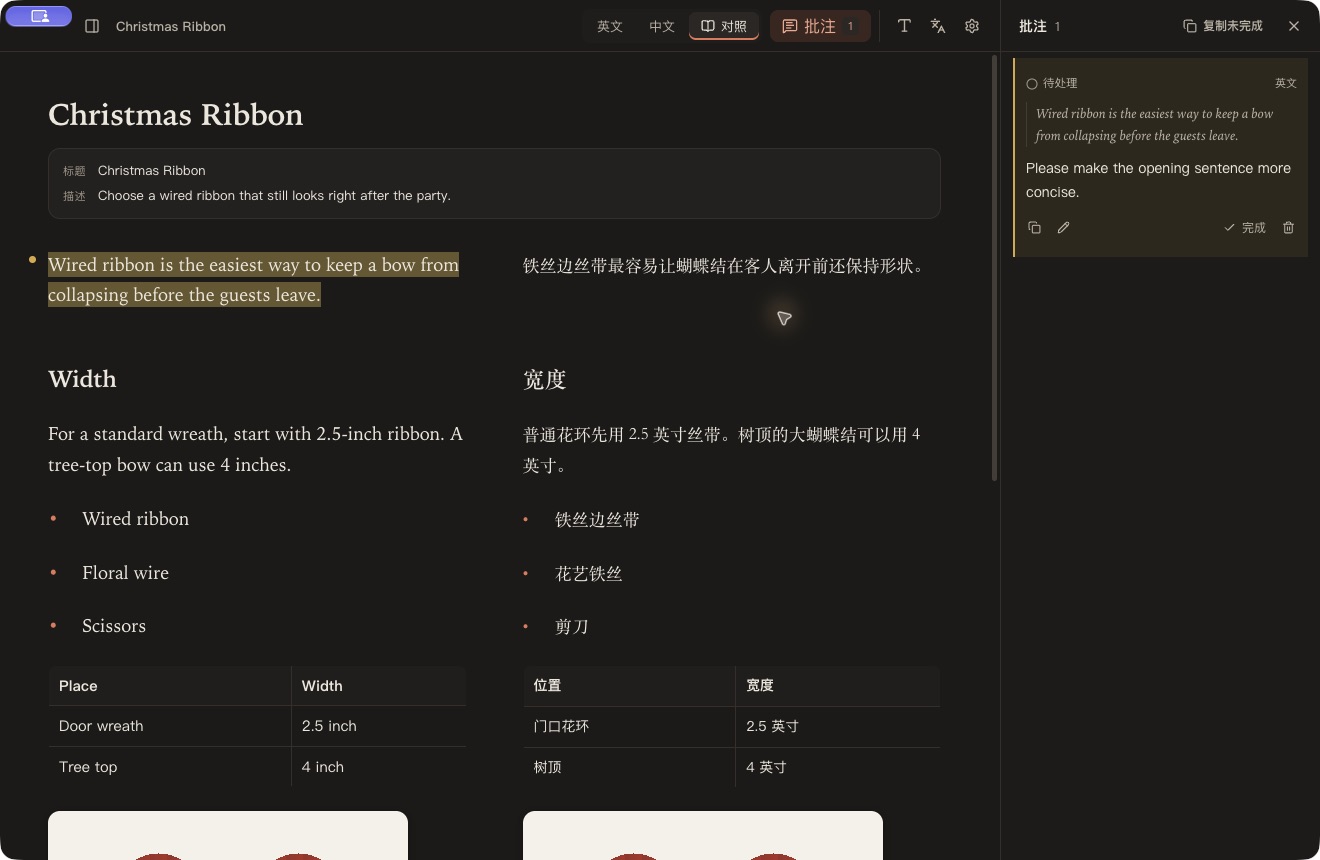
You can send a screenshot or copied passage straight to your AI. To finish reading before revising, or keep track of several rounds, select a sentence, choose Note, write a comment and save. The shortcut is Option + Enter on Mac and Alt + Enter on Windows. Open Notes in the toolbar to see the article’s comments together.
- Click a quotation to return to its English or Chinese source.
- Click the pencil to edit a comment. Unfinished changes are kept as local drafts.
- Copy one comment or all open comments to pass to an editor or AI tool.
- After the text changes, review comments marked Check again and confirm what has been resolved.
Notes are saved beside the article, without changing its text. Continue unfinished comments from Drafts in the notes panel. If local draft storage is unavailable, closing the app lets you return to save the note or explicitly discard unsaved drafts.
Understand a word without leaving the article
Click an English word to see available phonetic transcriptions and pronunciation tips. Say the word, Slowly, and Say the sentence help you listen in context. You will need to prepare the voice model before the first playback.
With AI connected, the word card explains what the word means in that sentence. Choose More about this word for usage, examples, common phrases, and memory aids. Successful contextual explanations are saved with the original sentence in the article’s word list.
You can also select a phrase or passage and choose Translate. AI explanations and translations can be wrong, so check important meanings against the source.
Contextual AI explanations currently use Chinese.
Listen, then read it again
Move the pointer beside a paragraph and click its read-aloud button, or listen to a word or sentence from the word card. Choose a voice and speed in Settings. Press Esc to stop.
Speech uses the Kokoro model on your computer, with five British and American voices. The first playback request needs an internet connection to download about 92 MB; an existing valid model cache is reused. Opening the app alone does not trigger a download. Once ready, speech is synthesized locally. British and American phonetic transcriptions are provided for reference; playback uses the voice selected in Settings.
Connect your own AI service
MD Duck itself is free. Reading, annotations, and local speech with a prepared model do not need an AI key. For contextual explanations, passage translation, or a full Chinese translation, open Settings → AI service and choose a connection method. Your own provider account covers any API charges.
OpenRouter: connect in your browser
Click Connect OpenRouter in browser, sign in and authorize on the provider’s page, then return to MD Duck. The app tests the connection automatically. Alternatively, create a key on the OpenRouter keys page and paste it into the app.
DeepSeek: paste an API key
Create a key on the DeepSeek platform and check that your account has API credit. Select DeepSeek in MD Duck, paste the key, click Save settings, then Test connection. The API URL and a default model are already filled in.
Another provider: enter a compatible endpoint
Choose Custom service (OpenAI compatible) and paste your key. In Advanced settings, enter the API base URL and model name, then save the settings and test the connection separately. The endpoint must support OpenAI Chat Completions. Leave /chat/completions out of the base URL.
Wait for a successful connection test before using AI features. Each service keeps its own configuration; save after switching providers. Leaving the key field blank preserves its saved key. Use Remove this service’s key to clear it.
Requests use your own service account credit. Even the short connection test may incur a small charge. A chat subscription may not include API credit. If a test fails, check the key, credit, model, or network as indicated, then try again.
Where your files stay, and what goes online
Your articles stay on your computer. MD Duck reads real folders and saves notes, word explanations and translation progress in a nearby .review/ directory. Library order, progress and path associations stay in the library’s .mdduck/ folder. App settings and annotation drafts are stored on the current computer. Folder management and archiving do not require a network connection.
| Feature | Network activity |
|---|---|
| Reading and annotations | No article upload is required. Remote images in an article are loaded from their original URLs. |
| Phonetic lookup | Uses the local word list first. If a word is missing, sends the word to Free Dictionary API. |
| AI explanations and passage translation | Sends the selected text and necessary context to your chosen service. |
| Full-article translation | After you confirm, sends the article text to the selected AI service in sections. |
| English speech | Downloads the model initially, then synthesizes speech locally. |
| Connecting an AI service | Sends a short test message. Browser authorization opens the provider’s page and completes through a local callback. |
API keys are encrypted through the operating system’s secure storage and kept on your computer. They are never displayed back in the interface. The app reports an error if it cannot save a key securely. Removing a key in MD Duck only removes its local copy; revoke the key on the provider’s platform if needed.
This website has no sign-in, forms, or analytics scripts. Server access logs depend on the hosting configuration.
When something needs attention
Why is there no Chinese translation in the reading view?
Check the filenames first, such as notes.md and notes.zh.md. You can also use Choose a translation to link a file manually. If both files open but paragraphs do not match, use the whole-article pairing check and inspect the markers and structure at the reported lines. You can keep reading in two columns.
Why can I see phonetics but no explanation?
Phonetics can come from the local word list. An AI explanation for the current sentence needs a working service connection. Use Save settings, then Test connection in Settings, resolve any reported issue, then retry.
Do I have to start over after a translation stops?
You can resume saved progress when the source text, service URL, and model are unchanged. Changing the source or configuration starts a new translation to avoid mixing old results into it. Existing translation files are not overwritten.
Why is speech still preparing?
The first use downloads and loads the voice model. The time needed depends on your connection and computer. You can keep reading and writing notes while it prepares.
How do I keep my notes when moving an article?
Use Move to…, Rename or Archive in the app’s … menu to organize an article with its associated translation, comments, resources, drafts and reading position. In your file manager, move the complete article folder where possible and keep hidden .review/ and .mdduck/ folders. If an association cannot be confirmed, MD Duck preserves the records and asks you to check. Do not delete old records or overwrite them manually. See folders and archiving.
What if a note fails to save?
Check the folder’s write permissions and the original file’s location. Keep the draft and retry. You can also copy your comment elsewhere; do not discard the draft after a failed save.
Can I download it now? Which systems are supported?
Free betas are provided for Apple Silicon Macs and Windows x64. See Downloads and releases for public files and their release status. Intel Mac, Windows ARM and Linux installers are not provided yet. Read the Mac installation steps or Windows installation steps before your first install.
Start with the demo: read a paragraph, ask for a focused revision, then check it.
Download the workflow example