
01 / The original
Tell the supplier what you need and ask for a quote.What exactly should the reader include? The advice stops before it becomes useful.
Let your AI write. Open the local files here and read them carefully. A paragraph feels thin? Send a screenshot or the text back to your AI, then come back to check the revision.
Apple Silicon Mac · Windows x64 · Free & open source
Explore ways to use it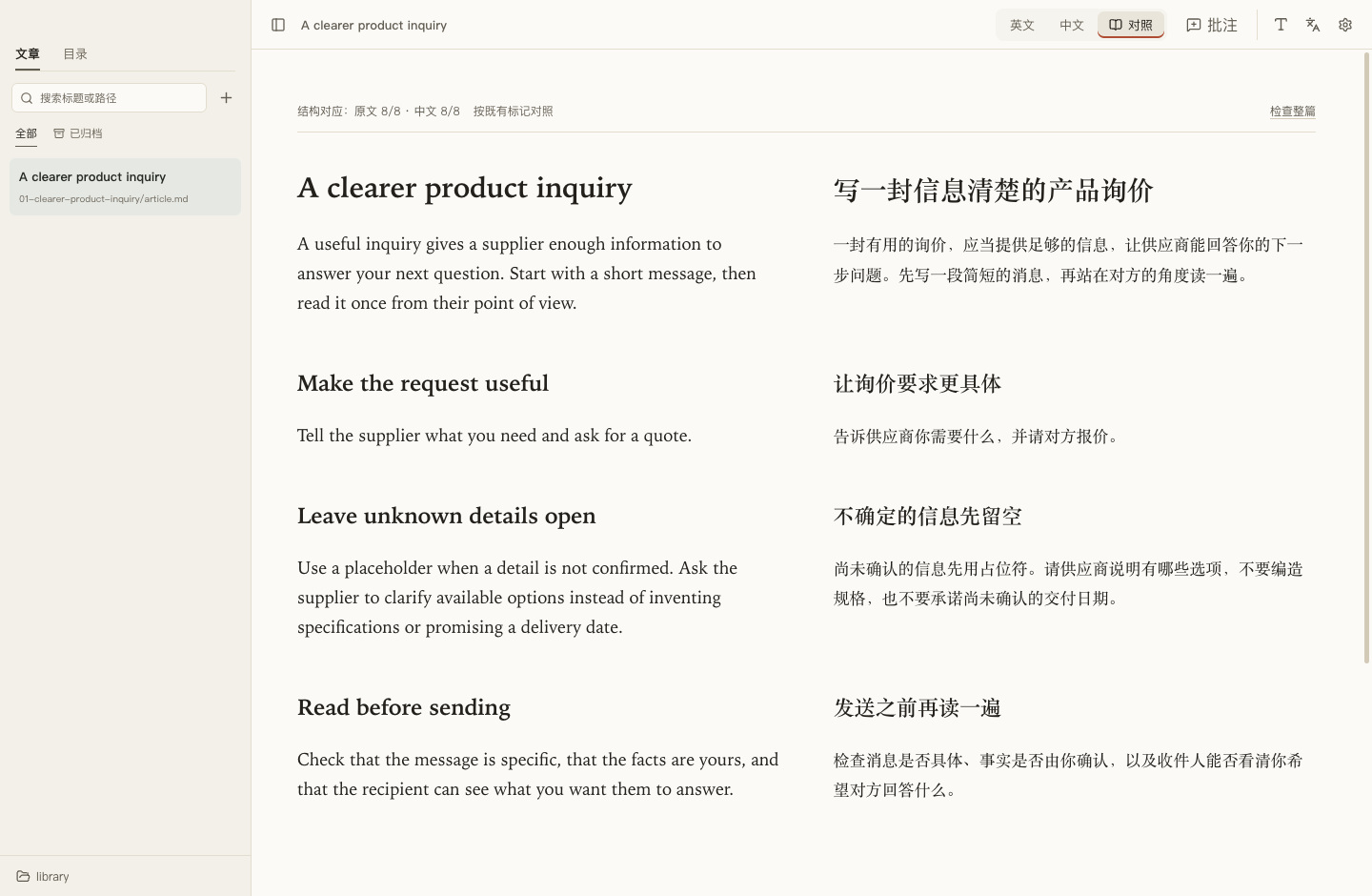
Write in your AI, review in MD Duck, then publish through your own tools. You do not need an MD Duck account or an AI key in the reader.
Ask it to write Markdown into a local article folder. If it can only chat, save the returned text yourself. Open your article library in MD Duck. For this downloaded example, select the library folder inside the extracted files.
library/01-clearer-product-inquiry/
article.mdEnglisharticle.zh.mdChinese · optionalMac: unzip in Finder, then use File → Open Folder (⌘ O) to select library.
Windows: use Extract All in File Explorer, then File → Open Folder (Ctrl O) to select library.
Read the article at your own pace, alongside a translation if you have one. In our example, “Tell the supplier what you need” sounds useful but never explains what to include.
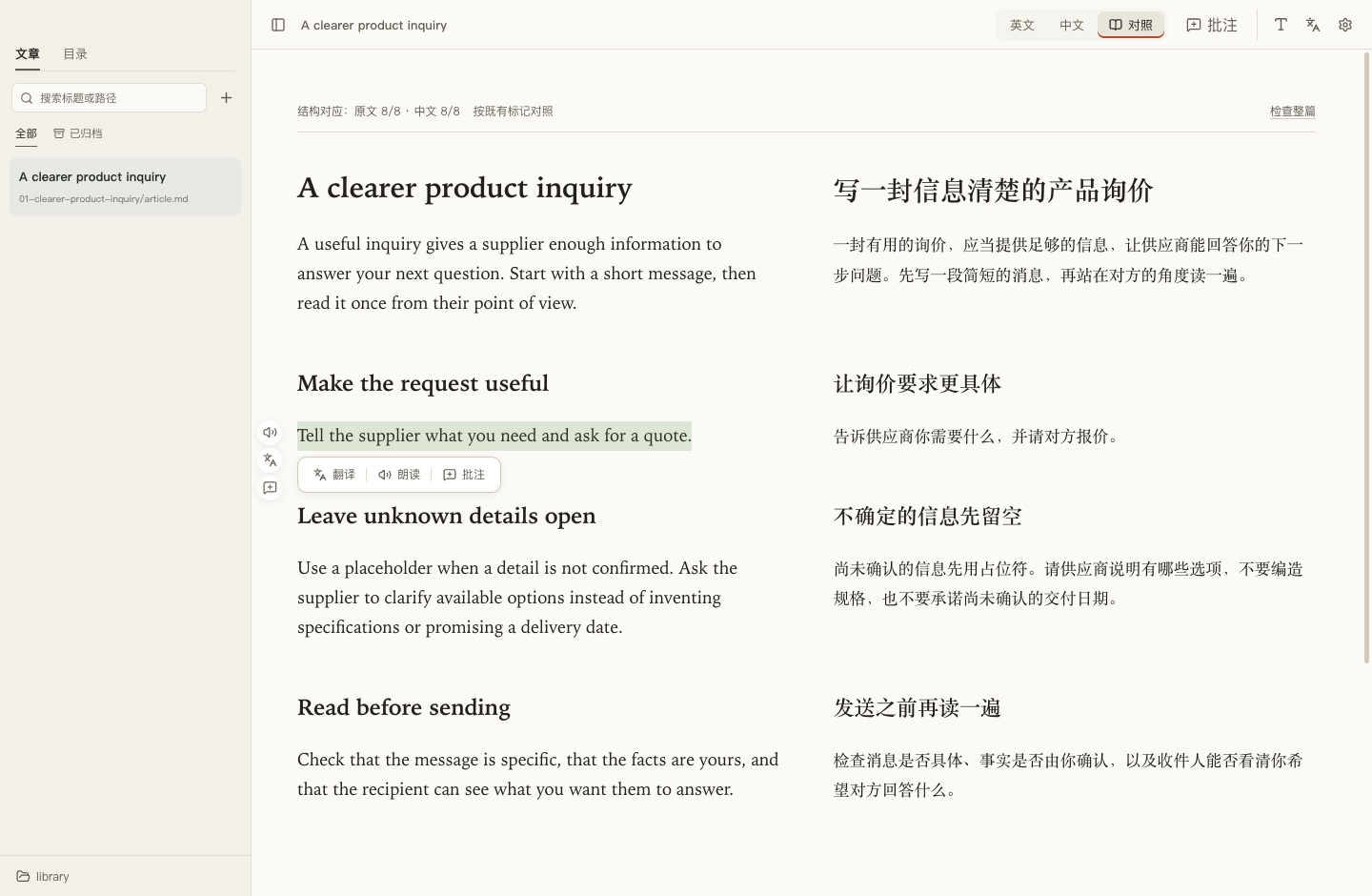
Mac: select the passage and press ⌘ C, or capture it with Shift ⌘ 4.
Windows: select the passage and press Ctrl C, or capture it with Win Shift S.
Paste the text or attach the screenshot in your usual AI conversation. Include the filename and ask for a focused change. An annotation is useful for a batch of comments, but you do not need one to do this.
Paste this with the passage or screenshot
“This is too vague. Explain which product, size, quantity, delivery city and required date to include. Use placeholders for unknown facts. Update both local language files without changing the block IDs.”Copy the full revision prompt
Mac: paste copied text with ⌘ V; attach the screenshot file to your AI chat.
Windows: paste text or a screenshot with Ctrl V if your AI chat supports it.
Have the AI update the local files, or save its answer yourself. MD Duck refreshes after saving. Re-read the changed paragraph and its translation before deciding it is ready.
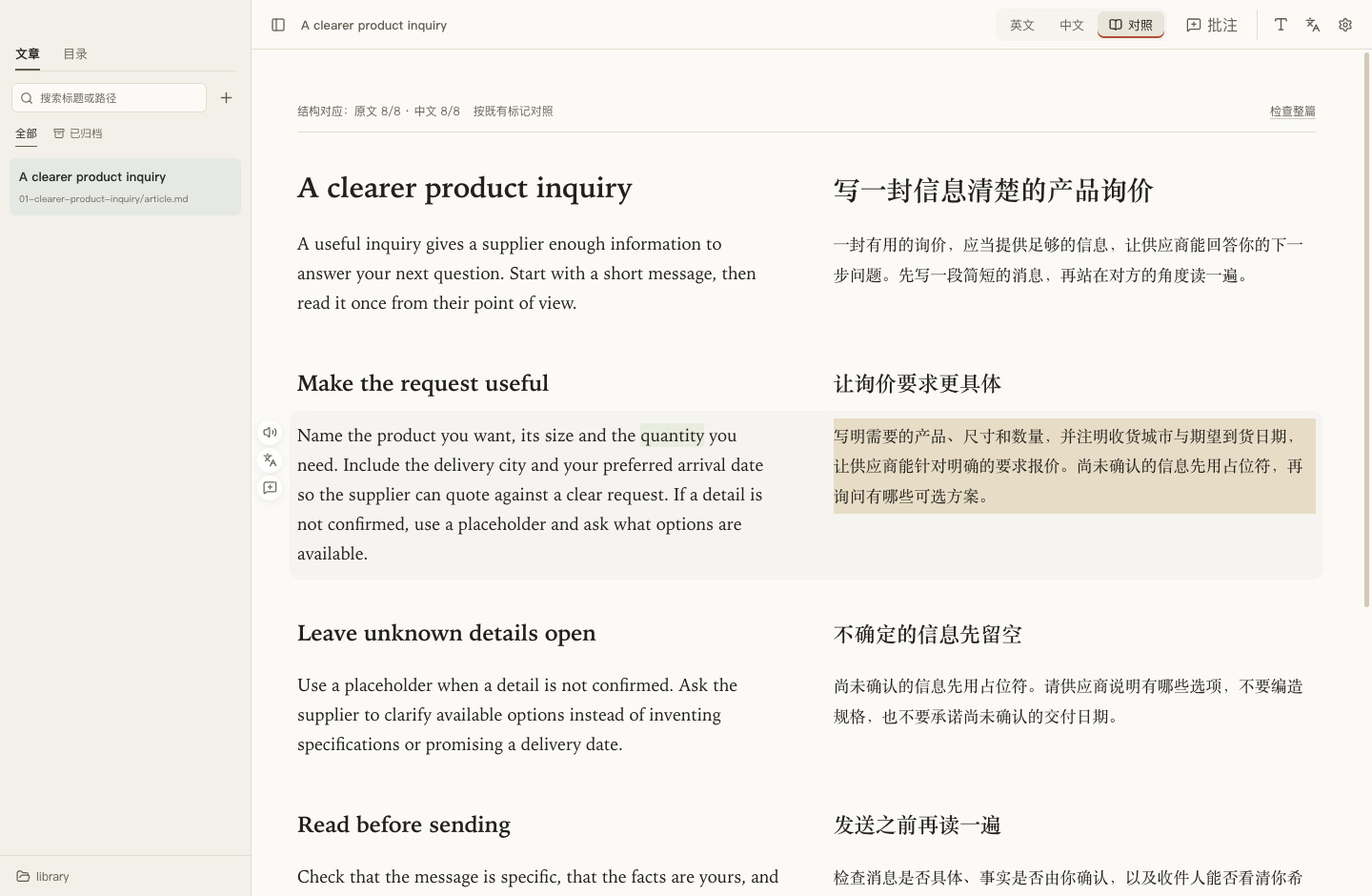
Mac: save in your editor with ⌘ S, then return to MD Duck.
Windows: save in your editor with Ctrl S, then return to MD Duck.
Give your external AI the approved file and a publishing instruction. It needs your backend access and confirmation of the target and final content. MD Duck remains your reader; the local article stays in your folder.
A clear handoff to your publishing AI
Mac: reveal the article in Finder from its ⋯ menu; back up the complete folder.
Windows: reveal the article in File Explorer from its ⋯ menu; back up the complete folder.
Follow one small change in our sample article, A clearer product inquiry. The point is simple: you notice what is missing, and your AI does the rewriting.
01 / The original
Tell the supplier what you need and ask for a quote.What exactly should the reader include? The advice stops before it becomes useful.
02 / Your instruction
Explain the product, size, quantity, delivery city and date. Use placeholders for unknown facts. Keep both languages consistent.
Attach the screenshot or paste the passage with its filename. Your usual AI conversation is enough.
03 / The revised passage
Name the product you want, its size and the quantity you need. Include the delivery city and your preferred arrival date so the supplier can quote against a clear request.
An excerpt from the revised article. Now check that the advice is specific, unknown facts remain placeholders, and the translation agrees.
A 90-second captioned walkthrough
A silent, captioned walkthrough assembled from real reader captures. The AI revision request and publishing handoff are examples; no live backend is connected.
Download the example files Copy the prompts for your own AIYou do not need one rigid workflow. Start with the files you have; add structure when it helps.
For quick notes, early drafts or articles from different AI conversations.
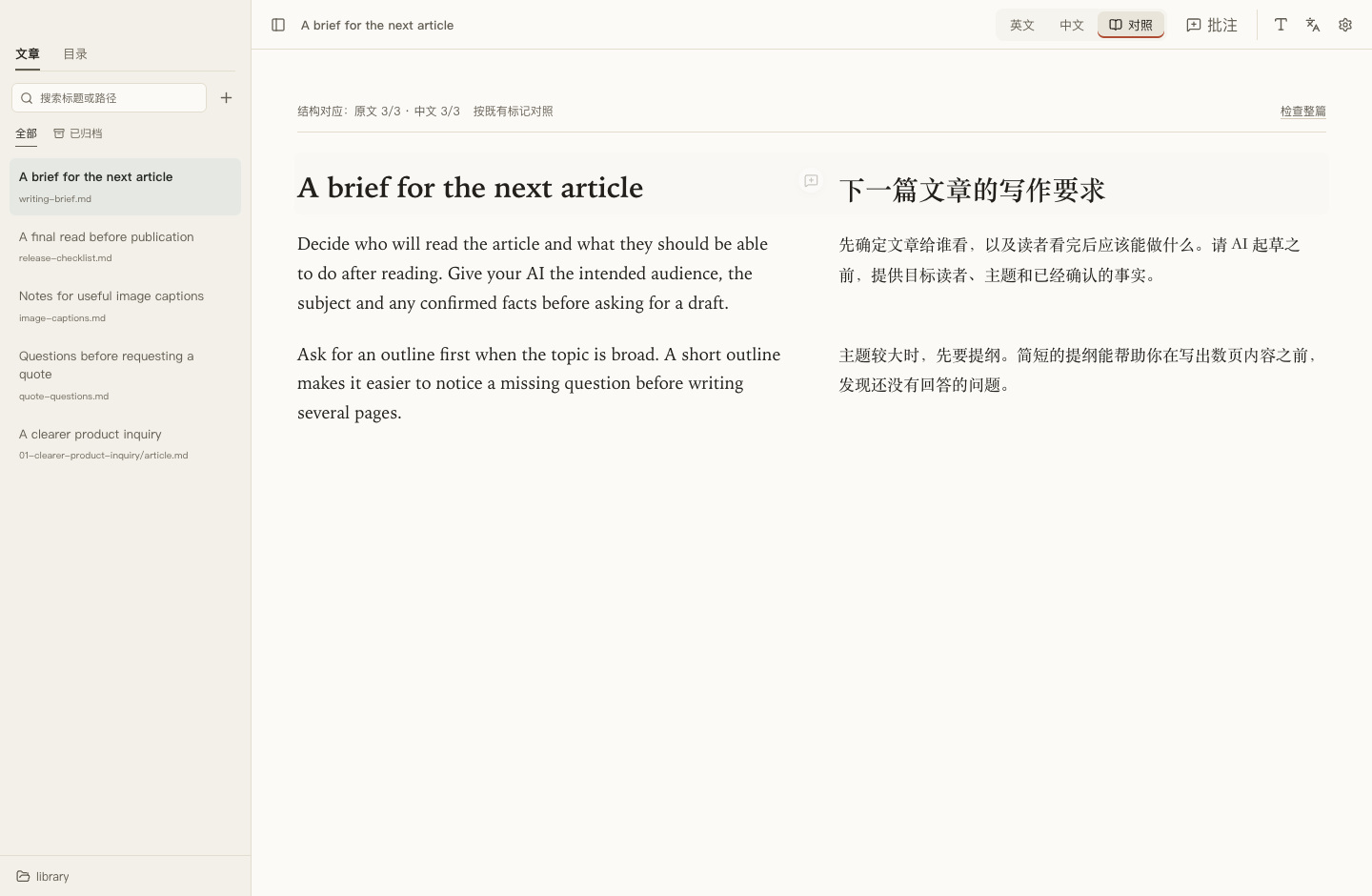
Keep a few .md files together and open that folder. There is no import step and no need to design a filing system first.
My articles / inquiry.md · brief.md
Opening a folderFor a guide, a ten-part series or several projects at once.
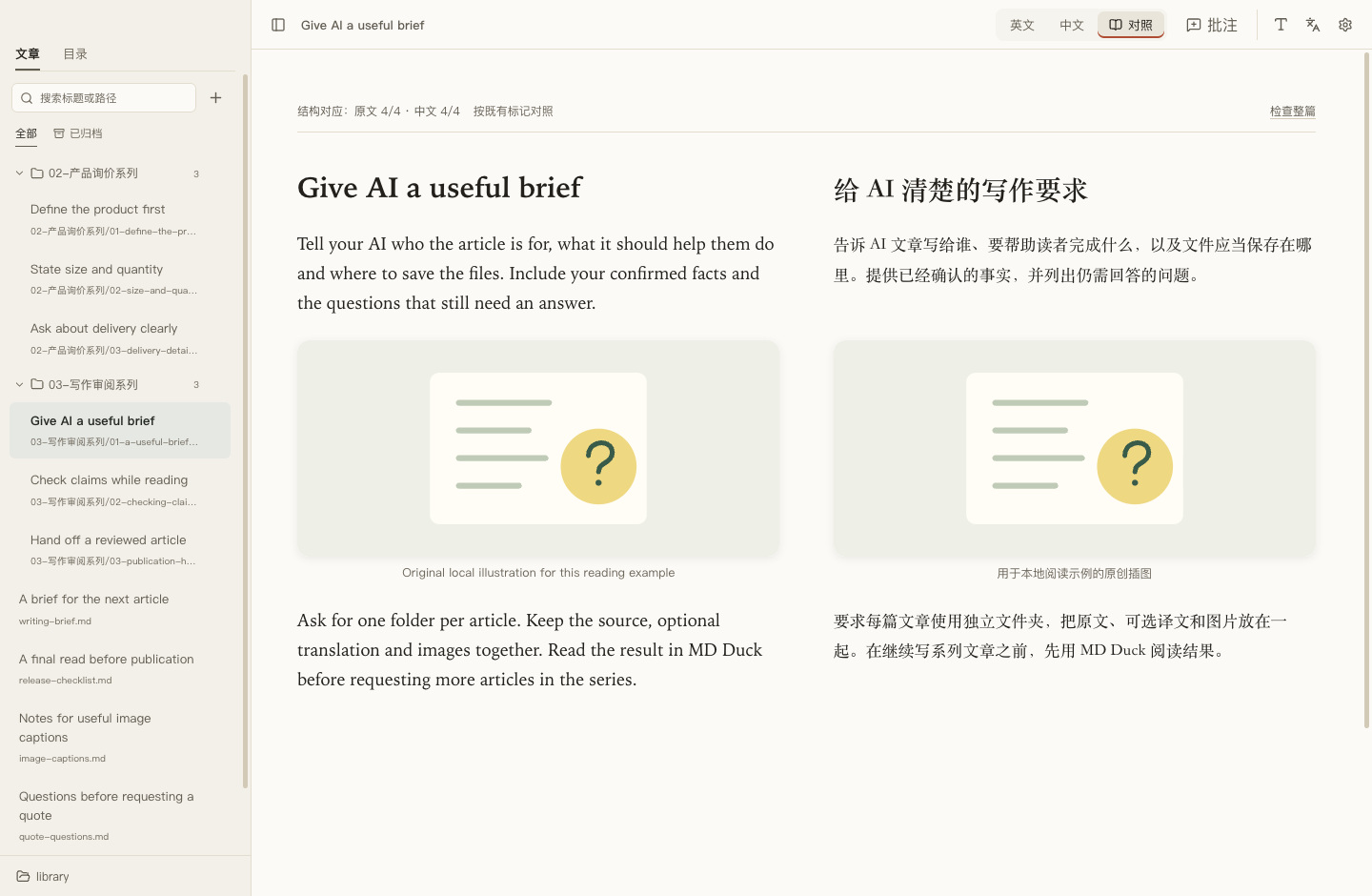
Create a folder for each series, then a folder for each article. Use clear names and 01-, 02- prefixes for the order you intend. You choose the structure; MD Duck displays it.
My articles / 01-buyer-guides / 01-first-inquiry /
Organizing a seriesFor illustrated articles that you will revise, move or publish later.
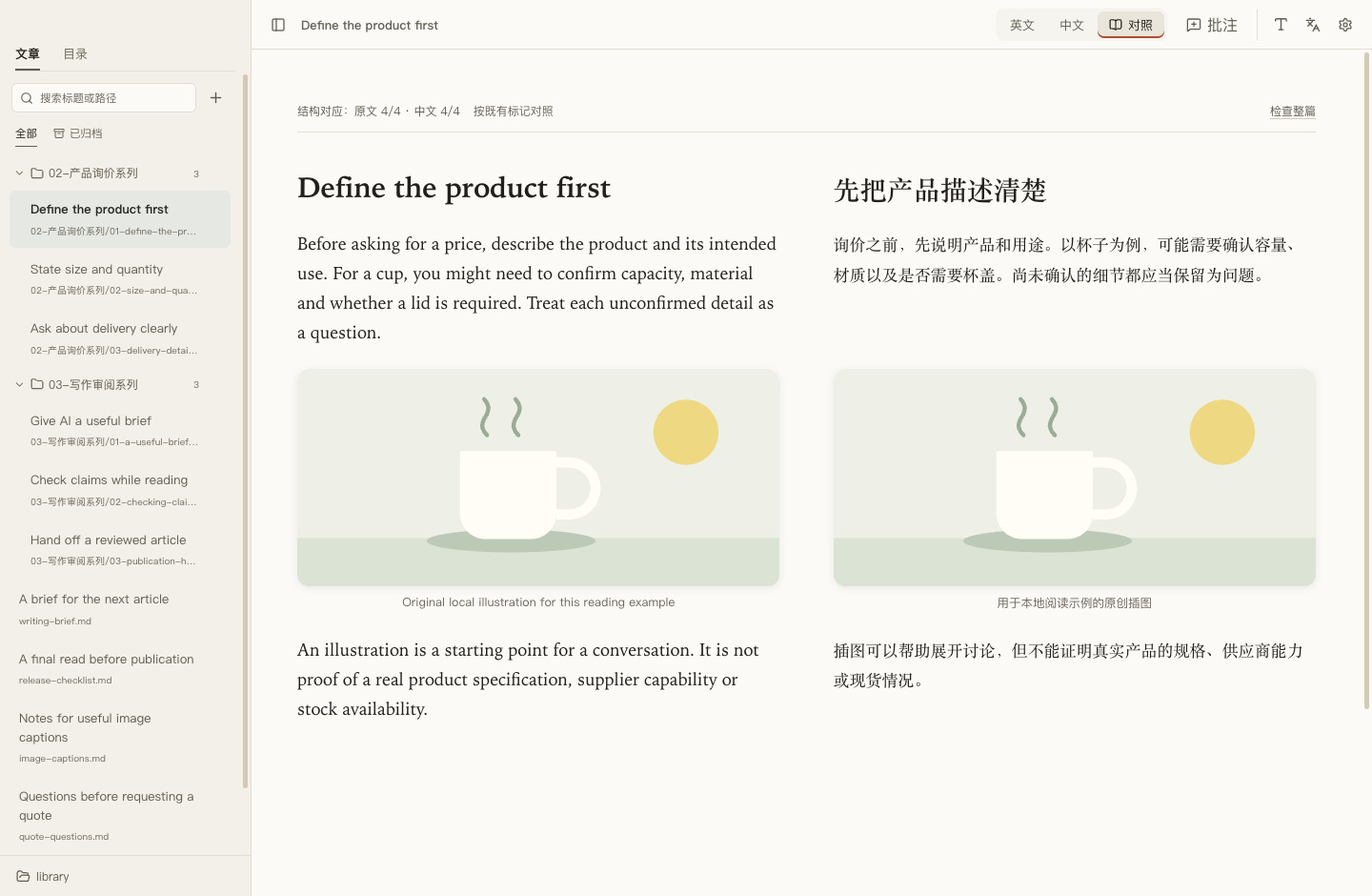
Put article.md, its optional article.zh.md and an assets folder together. Use relative image paths. Move or back up the complete article folder, including its hidden review data.
01-first-inquiry / article.md + article.zh.md + assets/
File and image rulesWhen the article is mostly right, but one explanation needs work.
Copy the passage or take a screenshot. Send it with the article location and your request to your AI. Save the revision, then come back to read it. Comments are useful when you want to collect several changes.
Read → copy or capture → ask for a change → reread
Copy a revision promptFor checking a translation or understanding an English article.
Keep the source and its companion together. Compare meaning as you read, and use the pairing check to locate structural problems. A matching structure still needs your judgment on the wording.
article.md ↔ article.zh.md
Bilingual readingFor separating completed articles from work in progress.
After review, hand the approved file to your publishing tool or an authorized AI. Keep a local copy. Archive finished articles in MD Duck, and bring them back when a later revision is needed.
Review → confirm publication → retain locally → archive
Moving and archivingCaptured on Mac with an independent sample library, using the published beta.6 reader. Windows uses the same file workflow; its window appearance and shortcuts differ. This demonstration did not publish an article to a real website.